

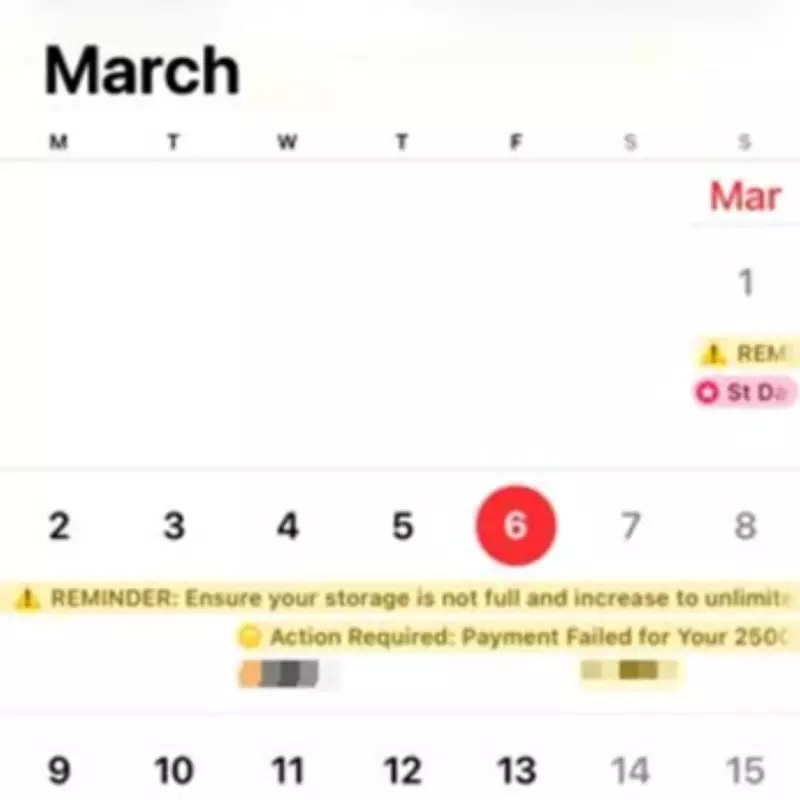
iPhone Calendar Scam: Users Targeted with 'Final Warning' Alerts Threatening Photo Deletion
Cyber criminals are actively targeting iPhone users through a sophisticated Calendar app scam, inundating devices with fraudulent 'final warning' alerts that falsely claim 'all photos will be removed'. These malicious notifications are designed to create panic and urgency, tricking users into clicking on phishing links that compromise personal information.
How the Scam Operates
Hackers exploit the iPhone's built-in calendar functionality by setting up bogus events that appear as legitimate reminders. One common tactic involves sending alerts stating 'action required' due to a failed payment for Cloud storage, while others encourage users to 'increase to unlimited storage'. These fake alerts often span multiple calendar months, increasing their visibility and perceived legitimacy.
The primary goal is to scare users into interacting with malicious links, which can lead to data theft, financial loss, or further malware installation. This phishing technique capitalizes on the trust users place in system notifications and the Calendar app's integration with daily device use.

Official Apple Guidance: How to Remove Spam Calendars
Apple has dedicated resources on its website to help users identify and delete spam calendars and events. The company explains that receiving unwanted calendar invitations or event notifications typically indicates accidental subscription to a spam calendar. To combat this, users must delete the calendar subscription entirely.
For devices running iOS 14.6 or later, follow these steps:
- Open the Calendar app and tap the unwanted calendar event.
- Look for the 'Unsubscribe from this Calendar' option at the bottom of the screen.
- Tap 'Unsubscribe' to confirm and remove the spam calendar.
Users with earlier iOS versions should:
- Open the Calendar app and tap 'Calendars' at the bottom.
- Identify the unknown calendar and tap the 'more info' button next to it.
- Scroll down and select 'Delete Calendar' to remove the spam content.
Protecting Your Device from Future Attacks
To minimize the risk of falling victim to similar scams, users are advised to:
- Avoid clicking on suspicious calendar invitations from unknown sources.
- Regularly review calendar subscriptions and delete any unfamiliar entries.
- Keep iOS updated to the latest version for enhanced security features.
- Report phishing attempts to Apple through official channels.
This Calendar app scam highlights the evolving tactics of cyber criminals, who increasingly exploit trusted applications to bypass user skepticism. By staying informed and following proper deletion procedures, iPhone users can effectively safeguard their personal data against these deceptive alerts.